Before you start
Before importing an STP file, make sure you are working in the 3D Modeling workspace. The import process runs through AutoCAD's translation pipeline, so the file is brought into the current drawing rather than opened as a standalone STEP model.
NOTE: STEP import is not available in AutoCAD LT. Autodesk explicitly states that AutoCAD LT can only import WMF, DGN, and DXF files. If you need to work with .stp or .step files, you need the full version of AutoCAD or another compatible workflow.
Method 1: Using the quick access toolbar
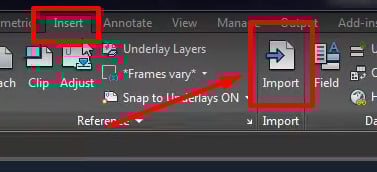
Step 1: Select the "Insert" tab.
Step 2: Locate the "Import" panel and click the "Import" button.
Step 3: Find the STP file you want to import in the file explorer and click "Open."
Method 2: Using the command line interface

This method is often faster for experienced AutoCAD users.
Step 1: Open the command bar (Ctrl+9 on Windows; Cmd+3 on Mac).
Step 2: Type IMPORT in the command bar and press Enter (or Return).
Step 3: Find the STP file you want to import in the file explorer and click "Open."
Autodesk's support documentation specifically recommends using the IMPORT command for STEP files.
What happens after you click "Open"
%20files.jpg?width=609&height=171&name=AutoCAD%20opens%20STEP%20(STP)%20files.jpg)
A window may pop up showing that the import process has started. You can safely close this pop-up and let the import run in the background. Autodesk's documentation confirms that import is performed as a background process and that a notification bubble appears when the command is complete.
Clicking the file name in that notification inserts the imported data into the current drawing. If you close the notification bubble before clicking, you can also right-click the import icon on the status bar and choose Insert.
NOTE: You may need to insert the file manually once import is complete to make the geometry appear on-screen. Click the file name in the notification or the notification icon to do this.
Common issues when importing an STP file in AutoCAD
Some problems are straightforward: the file may be corrupted, the machine may not have enough memory or processing power, or the source model may contain geometry that does not translate cleanly. Since STEP import is a translation workflow (not a native open), geometry or metadata issues can appear depending on the quality of the source file and how AutoCAD's translator handles it.
Other common issues include:
- Outdated or improperly installed AutoCAD: if the host application has missing or corrupted DLLs, the STEP translator may fail silently or produce an error on import.
- Translation artifacts: dimensions, annotations, or model structure in the STEP file may not map perfectly into the DWG representation, resulting in missing or altered data after import.
- AutoCAD LT: as noted above, STEP import is not available in AutoCAD LT at all. This catches people off guard regularly.
Why AutoCAD's STP import is a translation, not a native open
AutoCAD does not read or write STP files as a native working format. When you use the IMPORT command with a STEP file, AutoCAD's built-in translator converts the STEP entities into DWG-compatible geometry. The result is DWG data in your current drawing, not an editable STEP model.
This is worth understanding because it means the limitations of any non-native CAD exchange apply here. Translation errors, metadata loss, and version-related inconsistencies can all occur, depending on what was in the source STEP file and how AutoCAD's translator interprets it. For workflows where STEP fidelity matters, a dedicated interoperability tool can give you more control over what comes through and how.
How Spatial helps
If STEP import is part of a broader interoperability workflow, or if AutoCAD's built-in translator does not give you enough control over the result, our 3D InterOp SDK can help.
We read STEP files (including AP203, AP214, and AP242) and generate native geometry for ACIS, CGM, and Parasolid kernels. That means imported STEP data behaves as if it were created natively in your application, so downstream operations like modeling queries, Booleans, and meshing work without additional conversion steps.
On import, we apply automatic healing to address geometry and topology problems that accumulate across CAD exchanges. Our healing pipeline works in three areas:
- Topology repair: removing duplicate and overlapping vertices, splitting edges with large discontinuities in their parameter curves so their continuities follow the rules of the target modeling kernel.
- Geometry refinement: reconstructing self-intersecting and irregular curve and surface geometry of edges, co-edges, and faces, as well as trimming and sub-setting underlying surfaces to conform to the target kernel's rules. Our healing does not alter the shape of the original model.
- Fixing invalid data: correcting loop errors and other structural problems in the body.
The goal is to produce a model with high enough quality to be correctly interpreted by the target kernel while staying true to the designer's original intent.
We also support product manufacturing information (PMI) in both graphical and semantic form. For STEP AP 242 specifically, 3D InterOp can both read and write PMI with associativity to 3D geometry, covering dimensions, tolerances, GD&T, datum references, and annotations linked directly to the model. This is also supported for CATIA V5, NX, Creo, SOLIDWORKS, and JT formats.
Our selective import API lets your application load only what it needs: product structure, tessellated geometry, exact B-rep geometry, or manufacturing information, independently. This gives you control over memory, performance, and what data actually reaches your users, rather than pulling in the entire file every time.
3D InterOp also maintains stable topological identifiers across re-import, which matters for applications that need to track specific faces, edges, or other topology elements when a model is updated and re-translated.
We read and write more than 30 CAD, BIM, mesh, and visualization formats, so STEP handling can be one step in a larger pipeline alongside native formats like CATIA, NX, SOLIDWORKS, Creo, and Inventor, as well as neutral formats like IGES and lightweight formats like JT and 3D XML.
👉 Learn more: What is an STP file?
Over 300 companies have used 3D InterOp across more than 20 years.
You can request an evaluation here.

-1.webp)















.png?width=450&name=AdobeStock_188705270%20(2).png)